In this article, we will cover on how to install a pixel for your website, track actions on your site that you care about, and make sure that it is working in 3 simple steps.
Before you start – You need a website for your business and need to be able to update your website’s code
Step 1 – Where do I get the Facebook Pixel?
You need to logged in to your personal Facebook account.
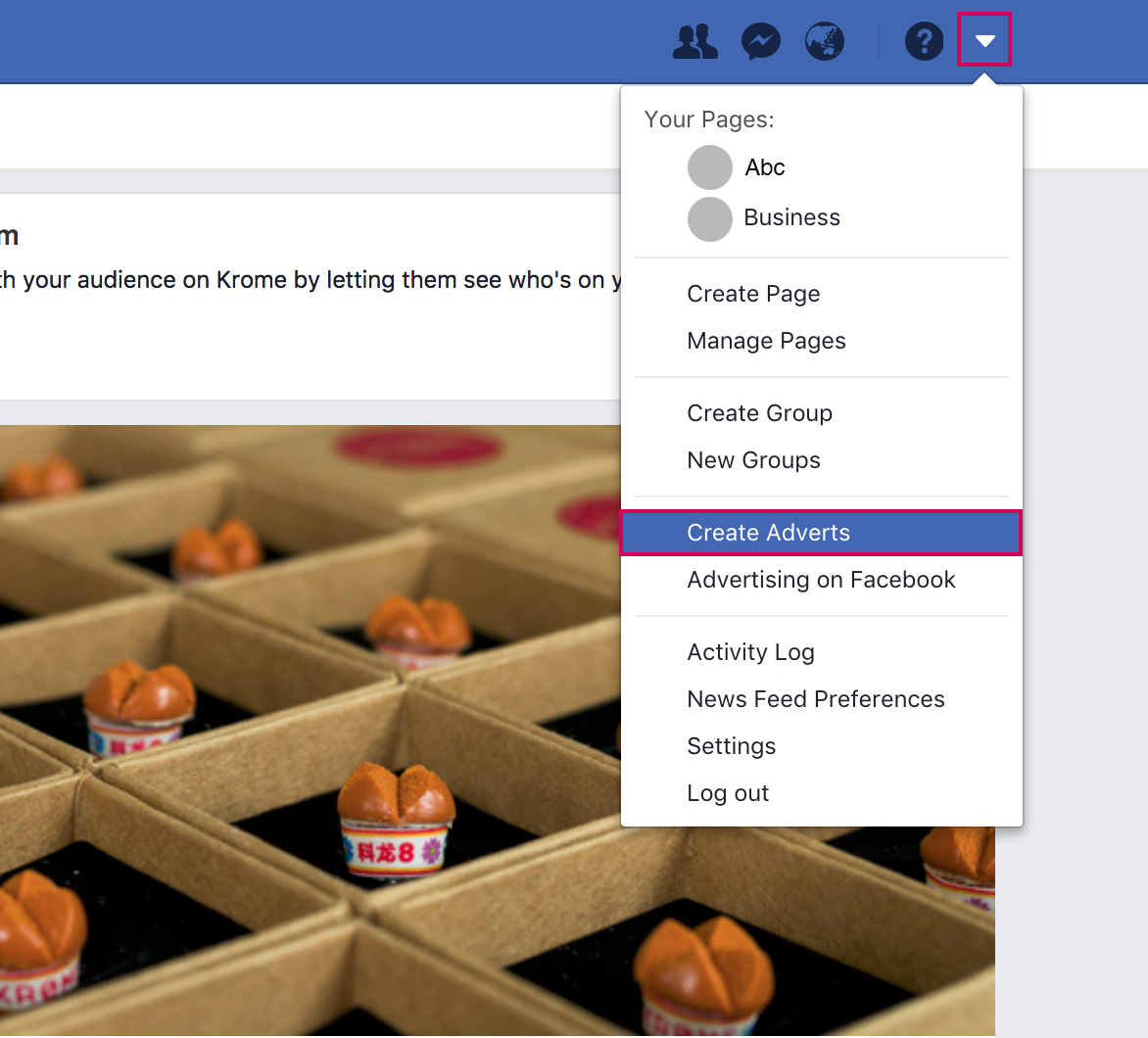
Click on Create Adverts from the dropdown menu
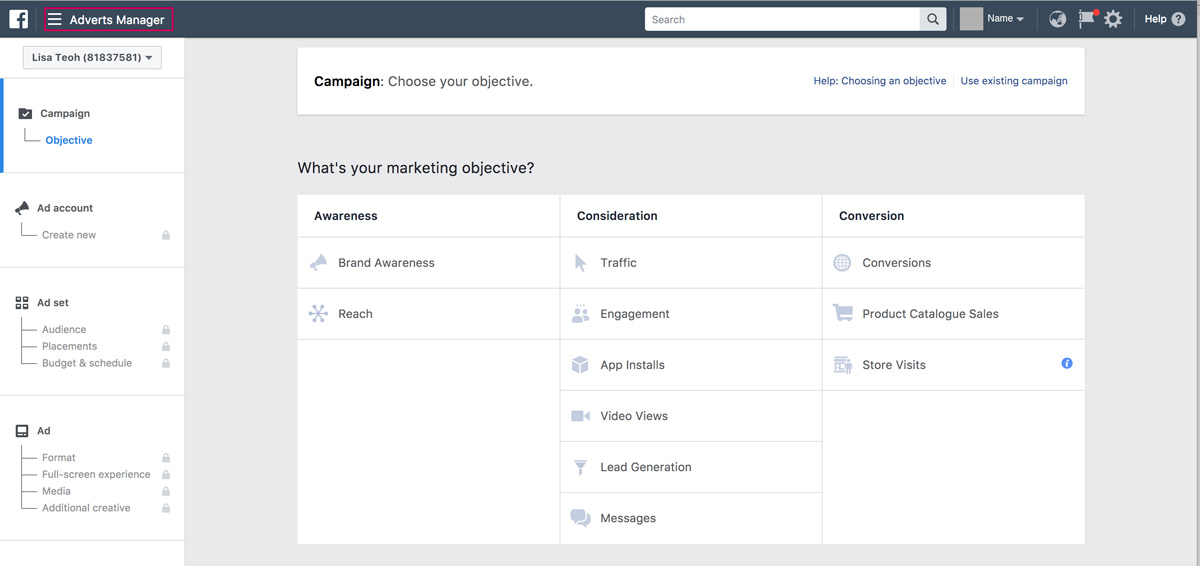
Click on your Adverts Manager on the top left
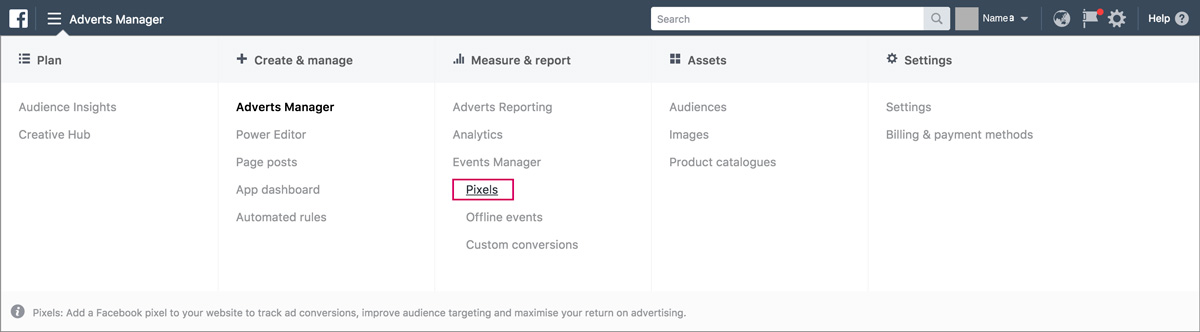
Go to your Pixels tab in Ads Manager
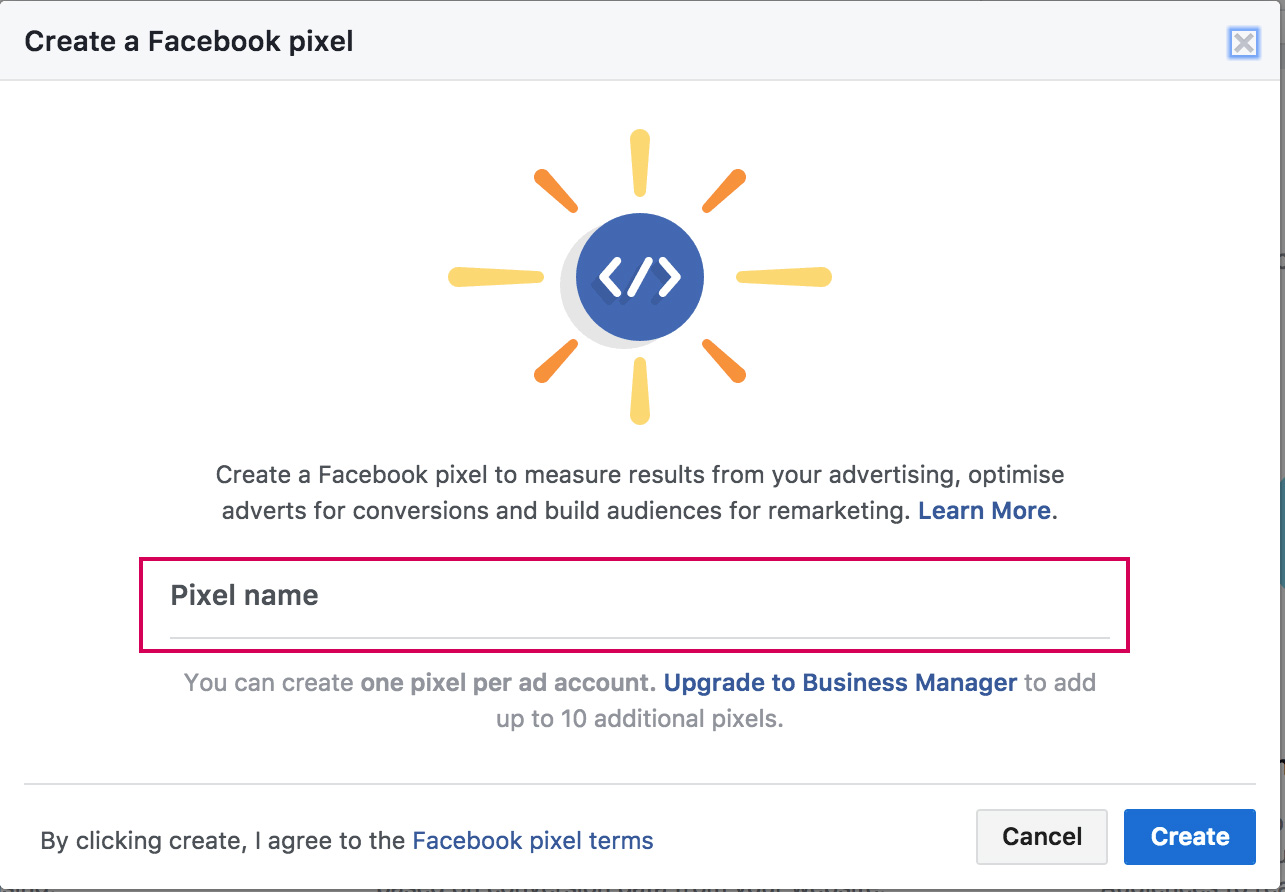
Click Create in the box that appears to finish creating your pixel
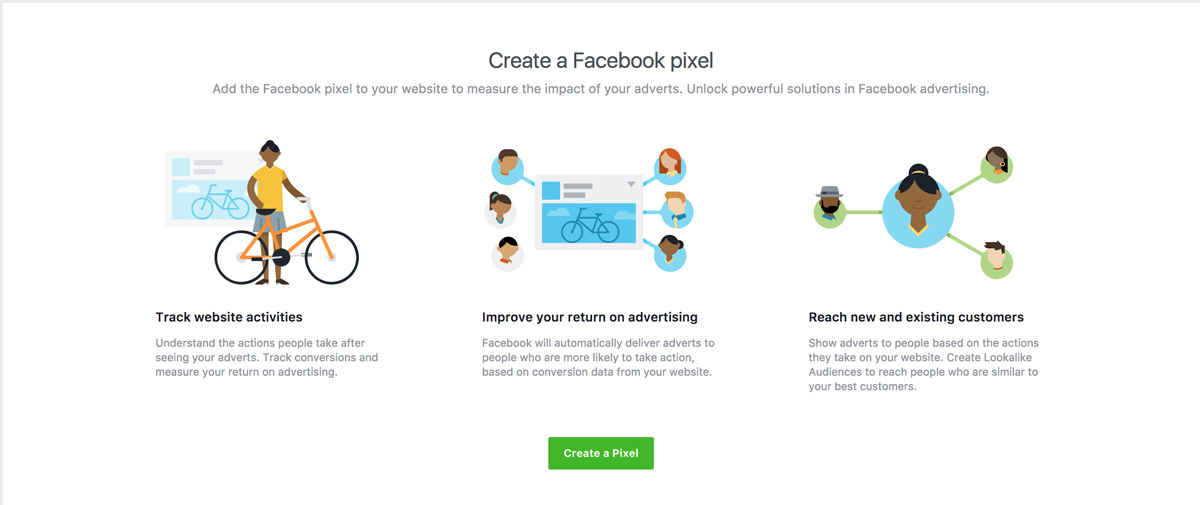
Create a Name for your Facebook Pixel
Step 2 – Add the Facebook pixel to your website
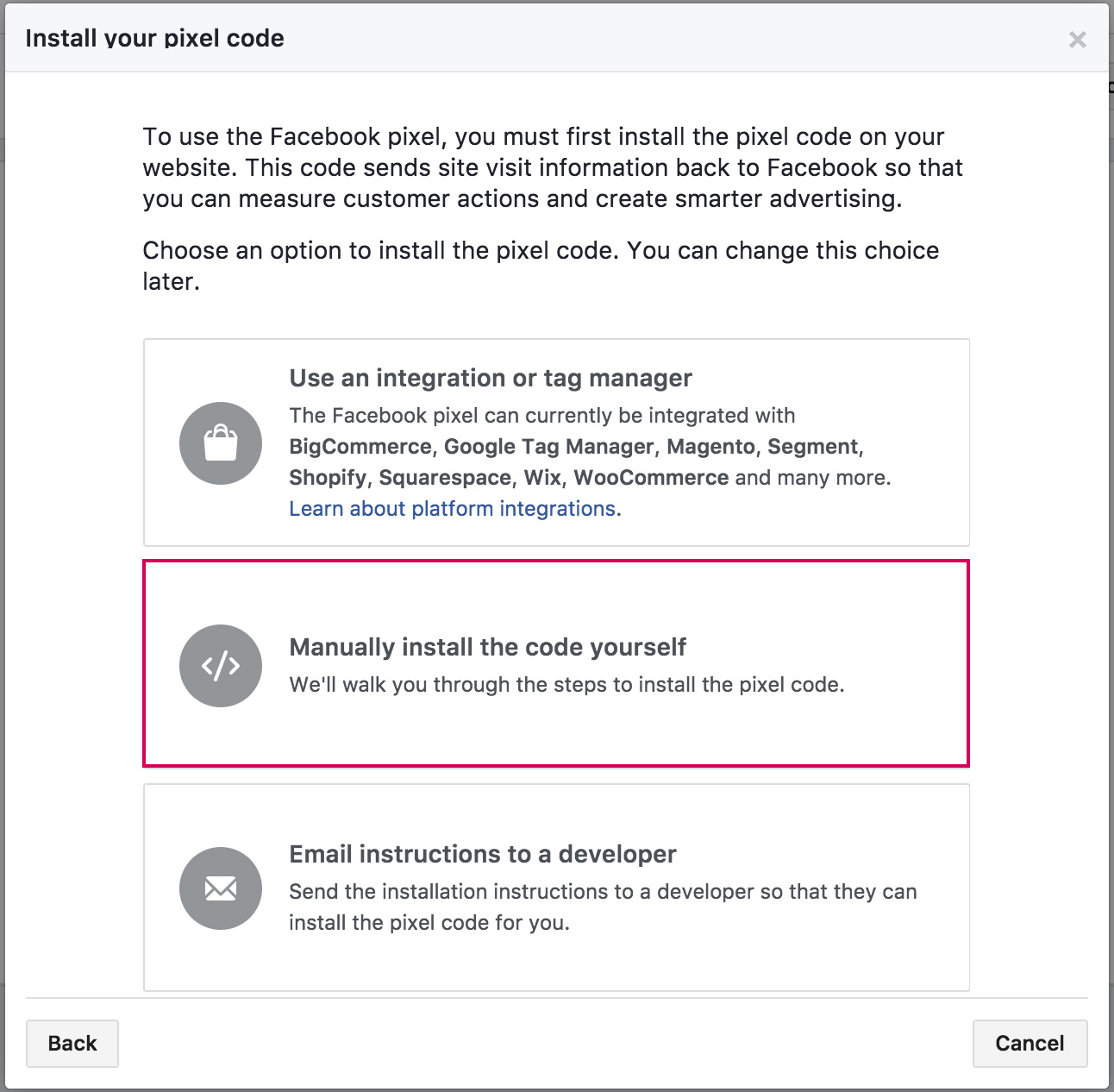
Go to the Pixels tab in Ads Manager and Click Set Up Pixel
Click Manually Install the Code Yourself
Copy and paste the code to your WordPress
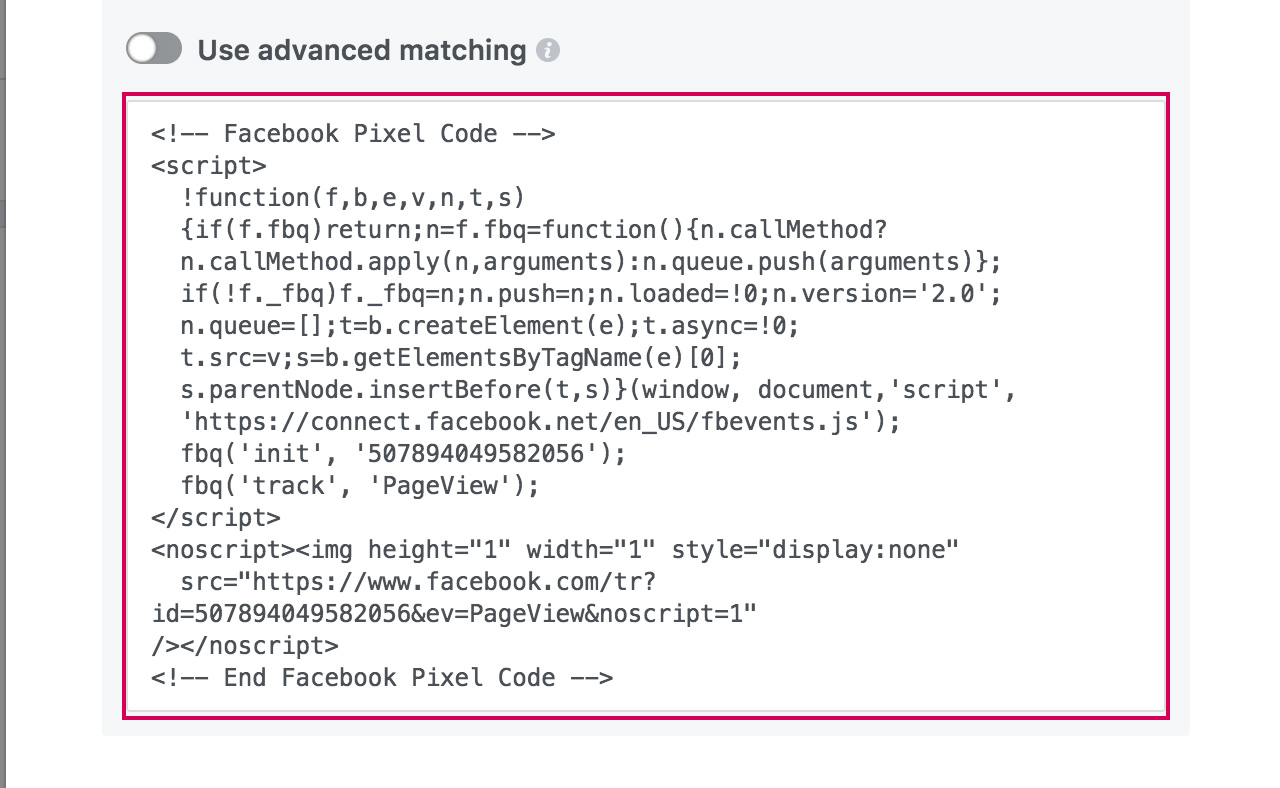
Carry out step 1, Install the pixel base code, by copying the generated code.
(In the screenshot, I’ve blanked out the tracking code, which is a numerical ID unique to you.)
You will paste this code into the header section of your website. Your site must be running a self-hosted WordPress.org installation (not WordPress.com) to do this.
Otherwise you can install a plugin like Insert Headers and Footers. This might be a better solution anyway. If you ever switch theme, you won’t lose the pixel.
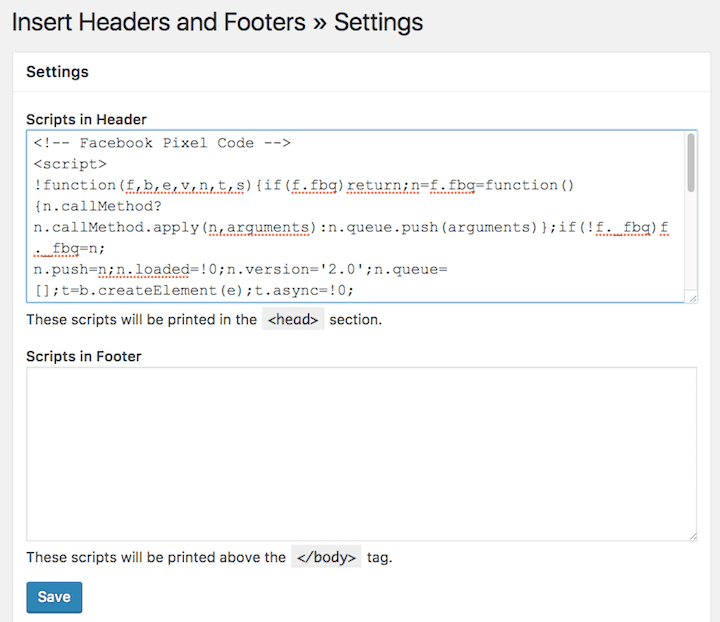
Go to Settings > Insert Headers and Footers
Paste the code into the Scripts for Header area and save.
Step 3 – Make sure your pixel’s working correctly
The Facebook Pixel Helper is a troubleshooting tool that helps you find out if your pixel is working correctly. It’s a Chrome plugin you can use to see if there’s a Facebook pixel installed on a website, check for errors, and understand the data that’s coming from a pixel.
Install the Pixel Helper
Before getting started, you’ll need to have the Chrome web browser. If you don’t have it yet, install the Chrome browser then follow these steps:
- Go to the Chrome web store and search for the Facebook Pixel Helper.
- Click + Add to Chrome
- Click Add extension
At Krome, we specialise in website design and development services. If you or your client are interested in creating a site, it’s time to tell us about your project or have a chat about what we can do. You can contact us here.